
Practical guide · Weddings and events
How to show guest photos live on a TV or projector
David Haïk, founder of Video Message
Checked on
Short answer
You need a screen, a device that can open a web page on it (a smart TV’s built-in browser, or a laptop connected by HDMI) and a reliable internet connection. Open the slideshow page on that device, go full screen, and decide whether photos appear as soon as they arrive or only after you approve them. Test the whole setup at the venue before the party.
1. What you actually need
Showing guest photos live does not call for special equipment. You need four things: a screen, a device that displays a web page on that screen, an internet connection, and one person who knows how it is all hooked up in case something stops.
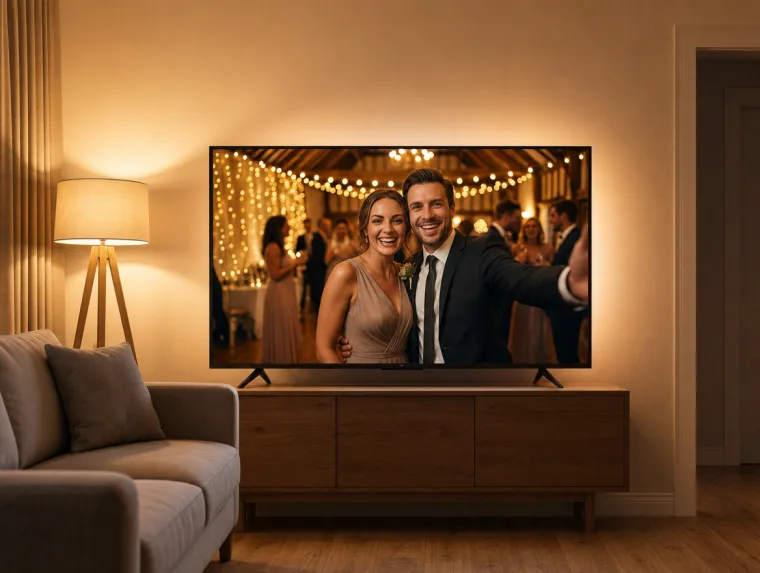
The screen can be a TV, a large monitor or a projector with a screen or a light-colored wall. Many venues already have one. Ask during your walkthrough, along with which inputs are available.
The device is what opens the slideshow page: a smart TV’s built-in web browser, or a laptop plugged into the screen. The internet connection is what brings in new photos. Without it, the screen stays stuck on whatever it already received.
Finally, put someone in charge: a groomsman, the DJ, the venue coordinator. On the day, you will not be the one waking up a laptop that went to sleep.
2. Four ways to hook up the screen
| Setup | What you need | Pros | Watch out for |
|---|---|---|---|
| Smart TV browser | A TV with a web browser and internet access | No cables, nothing to install | Browsers can be slow; turn off the TV’s sleep mode |
| Laptop + HDMI cable | A laptop, a long enough HDMI cable, the charger | Most reliable, easy full screen | Turn off sleep, screensaver and notifications |
| Projector + laptop | A projector, a screen or light wall, a laptop | A huge picture for a big room | Daylight washes it out; adjust the image on site |
| Mirroring a phone screen | A phone and a TV that support screen mirroring | Quick to improvise | The phone is tied up all night; sleep, calls and notifications show on screen |
For an entire evening, a laptop connected by HDMI is still the safest setup.
3. Lock down the internet connection
This is what goes wrong most often on the day. Venue Wi-Fi is usually shared by staff, the caterer, the DJ and dozens of guests. It can work perfectly during your afternoon setup and slow to a crawl once the room fills up.
Ask the venue whether there is a separate network for equipment, or a wired network jack near the screen: a laptop on a cable is far more stable. Write down the network name and password ahead of time.
Have a backup ready: a phone hotspot on a solid data plan, plugged into the wall. Check cell coverage in the room itself, especially in a barn, a basement space or a remote vineyard.
Remember that guests also need a signal to send their photos. If cell service is weak, print the guest Wi-Fi details on the tables, next to the QR code.
4. Show photos right away, or after approval
Whatever tool you use, decide before the party who controls what shows up on the screen.
Automatic display
Every photo sent appears on screen. It is the liveliest option, and you do not have to watch your phone. Works well for a party with close friends, as long as someone can pull a photo if needed.
Approval first
Photos wait for your OK before they appear. More reassuring for a big extended family, a corporate event, or when lots of kids are around. Someone needs to approve photos regularly.
Pulling a photo
Make sure your tool lets you take a photo off the screen at any moment, from a phone, without walking over to the laptop.
What the screen shows
Photos only, or videos and messages too? A video with sound can drown out the toasts. Photos alone are easier to follow in a lively room.
5. Pick the style, the pace and the spot
A party slideshow is watched from across the room and in passing. Go for a pace slow enough that people can spot themselves, and a clean look if the decor is already busy. Test with real phone photos, both portrait and landscape: that is where you find out whether the framing works.
Put the screen where guests walk by and linger: near the bar, the buffet or the entrance to the room. Keep it away from facing a window, and think about evening lighting: a projector gets easier to see as the lights go down, while a TV stays readable all day.
Add a small sign with the QR code next to the screen. Guests see the photos, want to be up there, and can send theirs on the spot.
6. Do a dry run before the party
Open the slideshow on site
On the device you will use on the day, at the venue if you can: open the page, go full screen, turn off sleep and notifications.

Send test photos
From two different phones, an iPhone and an Android. Check that they arrive, and how long it takes.

Approve and hide
If you use approval, approve one photo, then hide another from your phone, so you can do it without thinking on the day.
Printable
The day-of checklist
- Screen, HDMI cable, laptop charger and a power strip.
- Wi-Fi name and password, plus a backup phone hotspot.
- Sleep mode, screensaver and notifications turned off.
- Display mode chosen: automatic or approval first.
- One person in charge of the screen who knows the setup.
- A sign with the QR code next to the screen.
Sign wording for next to the screen
“Want to see your photos on the big screen? Scan this code with your phone’s camera and send them in. They will show up here in a few moments.”
Where Video Message fits
Photos sent by QR code play live in a web browser, on the TV or projector in the room. You choose automatic display or approval first, the Elegant, Polaroid or Festive style, and you can hide any photo from your phone. A hidden photo stays in your album.
See the live slideshowIncluded with every event at $49.
Frequently asked questions
Is a smart TV enough to show the photos?
Yes, if it has a web browser and an internet connection. If not, plug a laptop in by HDMI and open the slideshow page there.
Can I cast the slideshow to the TV from my phone?
Mirroring your phone can work in a pinch, but it ties up the phone all night. The Video Message slideshow has no built-in cast button: you open its link on a device connected to the screen.
What happens if the internet drops?
New photos stop reaching the screen until the connection comes back. That is why a backup hotspot and, if possible, a wired laptop are worth it.
Do guest videos play on the screen?
With Video Message, no: the slideshow shows photos only. Video messages go into the film, so nothing drowns out the toasts or the music.
How do I keep an awkward photo off the screen?
Choose approval first: photos wait for your OK. In automatic mode, you can hide any photo at any time from your phone.
Can we watch the slideshow again after the party?
With Video Message, yes: you can replay it from your dashboard and share it with loved ones by link.
Keep reading
How to collect guest photos
One destination, one QR code, one well-timed announcement, then download everything.
QR code sign wording and placement
What to write, where to put your QR codes, how big to print them and how to test.
Who can see your guests’ photos?
Visibility, sharing and how long files are kept, depending on the tool you pick.
Guest photo sharing options compared
Group chats, shared cloud albums, QR code tools: the real pros and cons of each.
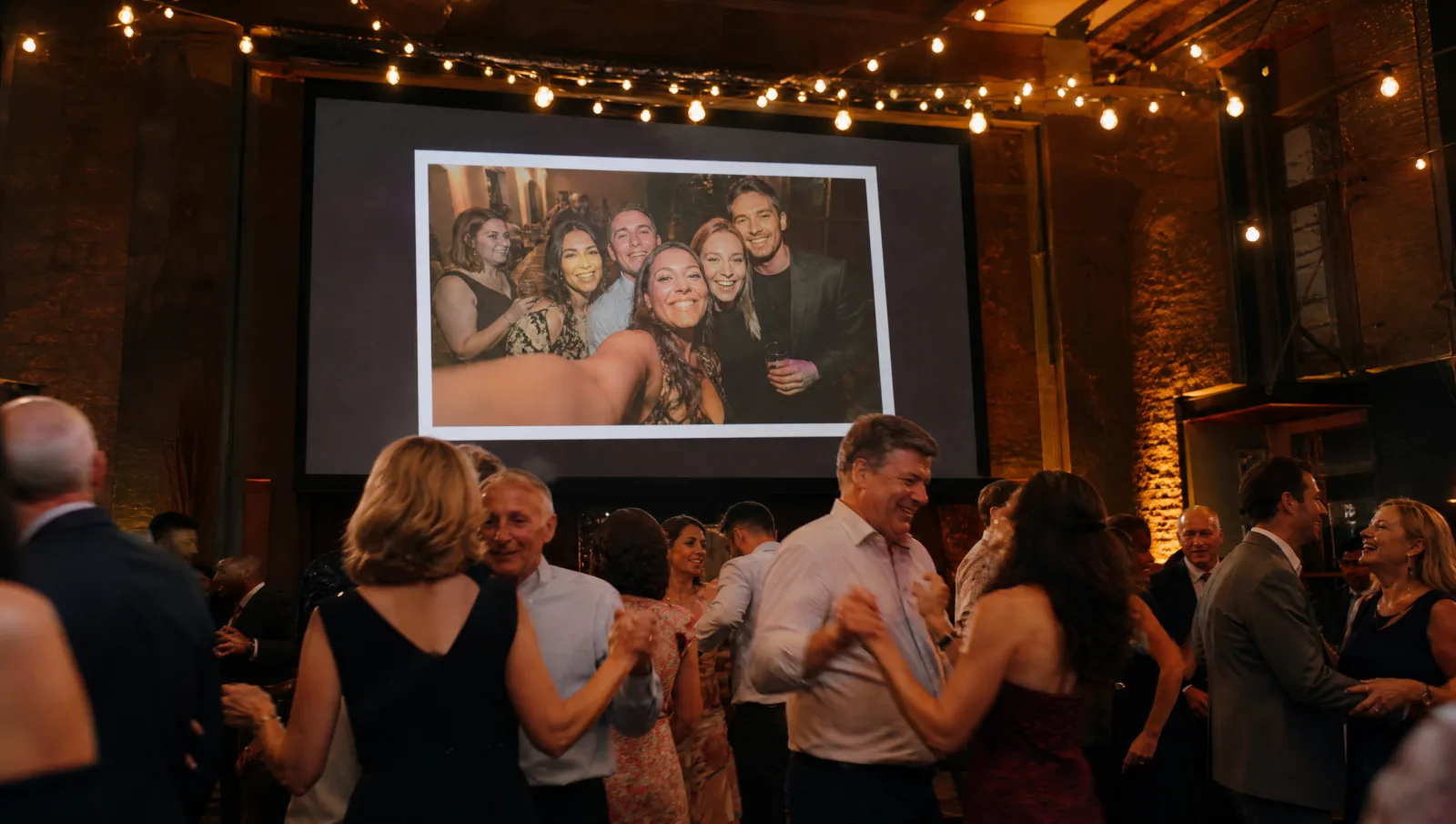
The live slideshow
Guest photos on the screen in the room, automatically or after approval.